New mobile client: joystick, attack, skills and automatic pickup
We rebuilt the game controls for touch: joystick, attack button, fan-shaped skills, potions, bars at the top, centered windows and item pickup. Gold VIP picks up on its own.
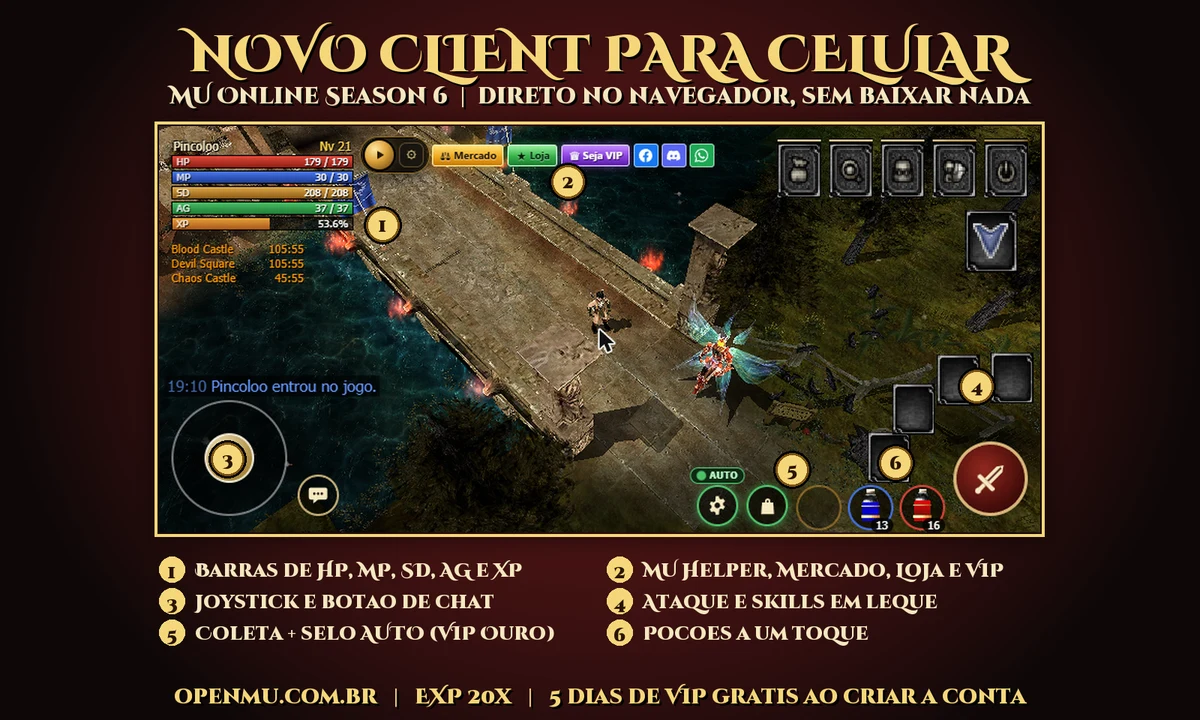
OpenMU now has a client designed for touch. You can play MU Online on iPhone and Android, straight from the browser, with nothing to download.
What is on the screen
- Joystick to move. Open windows close by themselves when you move.
- A round attack button and fan-shaped skills around it. A short tap casts the skill; a long press (or an empty slot) changes the slot's skill.
- Health and mana potions, plus a third one (key E), one tap away.
- HP, MP, SD, AG and XP bars at the top of the screen, with your name and level.
- Chat button: the keyboard only opens when you need to type.
- Inventory and vault side by side, centered on the screen. Tap an item to see its description and choose Move or Use.
- Tap another player to open the menu: Trade, Buy, Party, Whisper, Follow, Duel and Attack.
- Character selection with a single tap.
Item and Zen pickup
The bag button goes to fetch the Zen and ground items that pass your filter. The gear next to it opens the What to pick up panel: Zen, jewels, excellent, ancient, potions, +N or higher items, items by name or everything. It is the same filter as the MU Helper.
Gold VIP: automatic pickup
Players with Gold VIP turn on automatic pickup in the gear menu. From then on, the Zen and items from your filter go straight into your bag the moment the monster dies, with no need to walk to the ground. An AUTO badge shows on screen while it is on.
The same game rules apply: quest items and items with a per-character limit stay on the ground, and with a full bag the item stays where it dropped.
How to play on your phone
- Open play.openmu.com.br in your phone browser and sign in with your account.
- On iPhone, tap Share and Add to Home Screen to play full screen, without browser bars.
- On Android, use the Full screen or Install app button the game offers.
The full step-by-step with screenshots is in MU Online on mobile.
If the game was already open, press Ctrl+F5 (or close and reopen it) to load the new version. Tell us on Discord what you think of the controls.